
Escape Room Lab
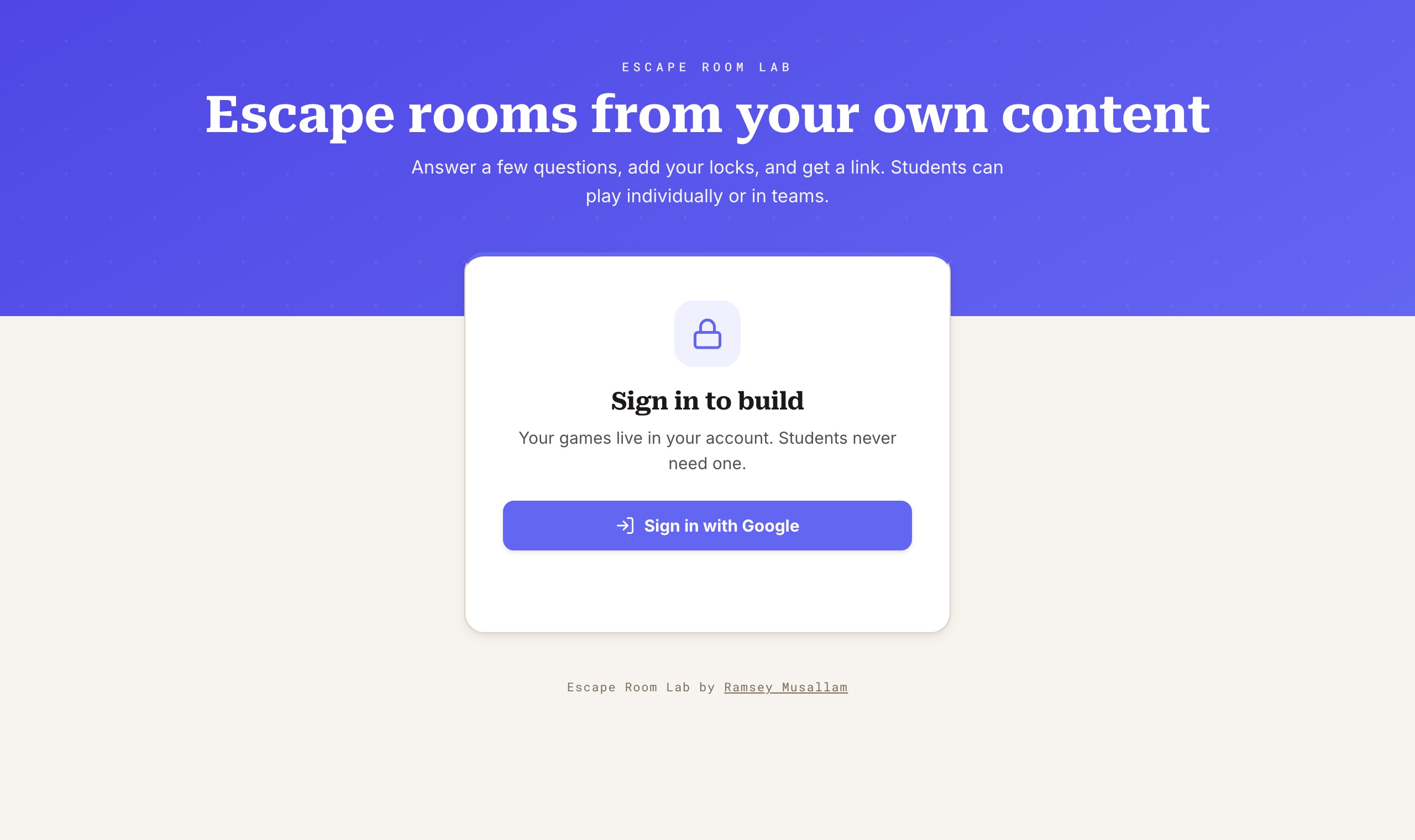 Escape Room Lab. Sign in, answer a few questions, add your locks, and get a link.
Every unit in my chemistry class now ends with two review games. One is a game show, loud and fast, three rounds of ten questions with a scoreboard. The other is an escape room, quieter and sneakier, because a lock does not care how confident you sound. You either have the code or you do not. I love what that does to a review session. The problem was never the format. The problem was building the thing.
Where I'm coming from
Before I built anything, I studied what already exists. Breakout EDU, Deck.Toys, Genially, Flippity, Google Forms with response validation. I even had NotebookLM merge all of their playbooks into one giant document, just to see what the "ideal" escape room engine would look like if you took every feature from every product.
The answer was: enormous. Arcades, branching maps, text to speech, export formats, a backend for everything. Each of those tools is good at something. None of them was the small, free, content-first tool I actually wanted on a Thursday night when the test is Friday and I have four questions I want to turn into locks.
What kept bugging me
Two things. First, the content was never the center. In most of these tools you spend your time on the scene, the theme, the animations, and the questions get dropped in at the end. I wanted the opposite. My questions are the game. The story should take ten seconds.
Second, almost everything was behind a paywall or a login that students had to create. I did not want my kids making accounts to play a review game. I wanted one link.
Escape Room Lab
So I built Escape Room Lab. It is free, it runs in the browser, and the whole builder is one question at a time. Name the game, name the unit, write a lock, pick a lock type, enter the code, add a hint, repeat. When you are done it generates a student link and a host link.
Students never create an account or sign in. They open the link, enter a team name, and play. One device per team, or one per student if you choose individual mode. The player screen shows a live strip of how the other entries are doing, and the host board on the projector shows the big clock and everyone's progress.
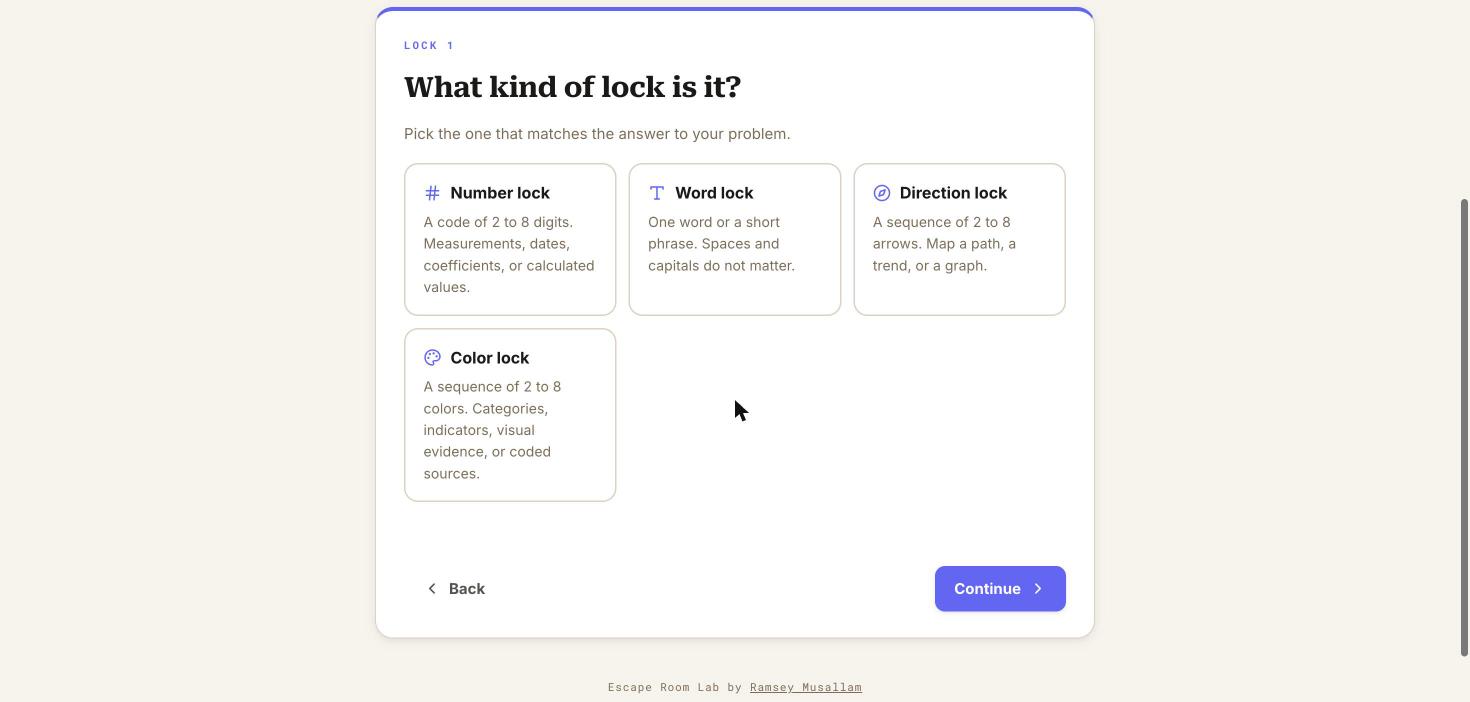 The builder. One question per screen. This one is the lock type.
There are four kinds of locks, and this is the part I had the most fun with:
- Number. Two to eight digits. A molar mass, a coefficient, a date, a measurement.
- Word. One word or a short phrase. Spaces and capitals do not matter.
- Direction. A sequence of arrows. A trend across the periodic table, a path on a graph, the order of steps.
- Color. A sequence of colors. Indicator results, categories, anything you can tag on the lab bench.
You also choose a game structure. Linear path means one lock at a time, in order. Open path puts every lock on the table at once. Converging paths lets teams take the early locks in any order and then regroup for one final lock. And if you do not feel like writing a story, pick a scenario preset (missing archive, station lockdown, or field mission) and the app writes the title, the opening, and the escape message for you. All of it stays editable.
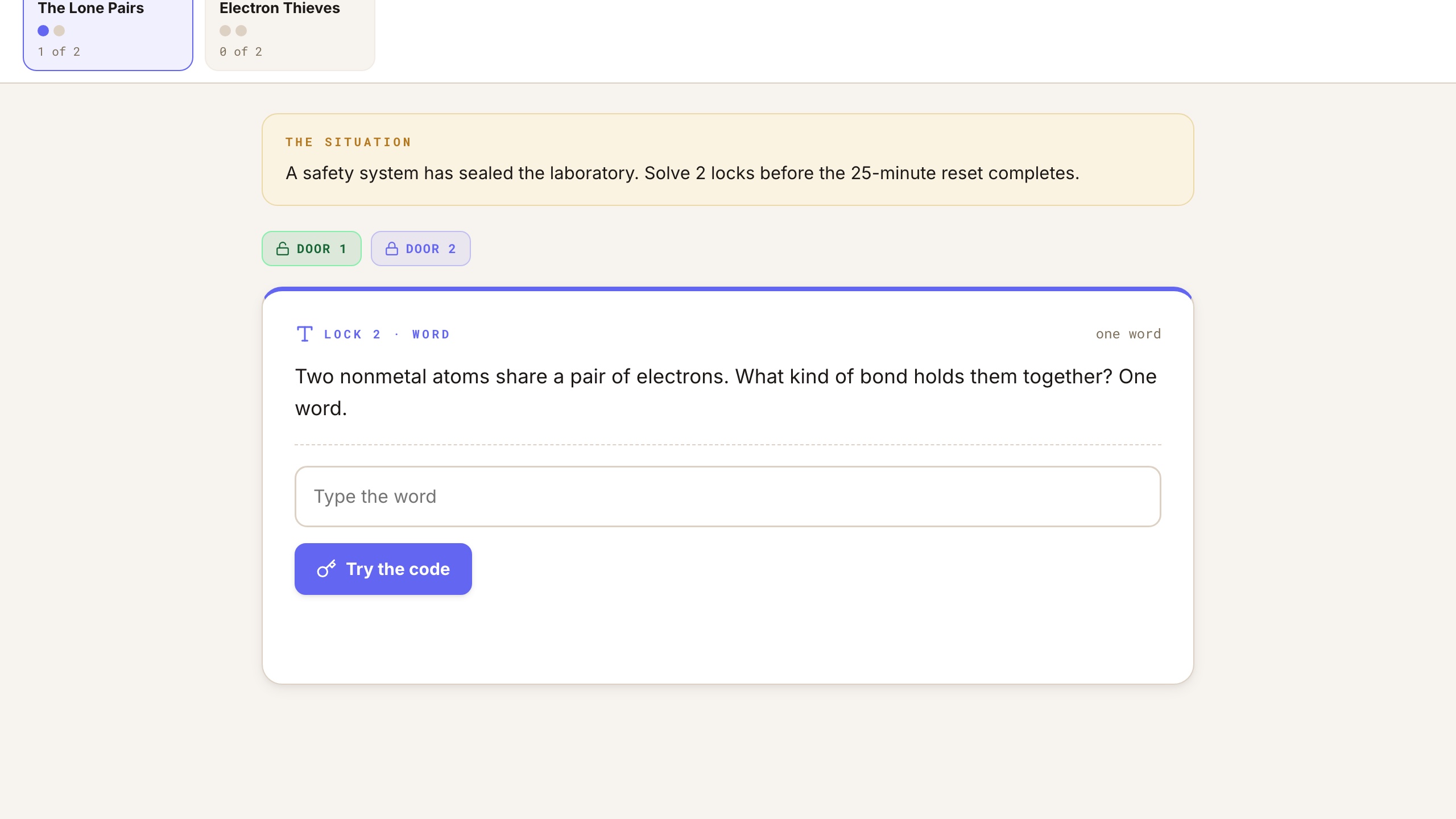 The student view. Door 1 is open, Lock 2 is up, and the strip at the top shows every team's progress.
How to run one
- Sign in with your Google account and click Build a game.
- Answer the questions. Name, class, structure, time limit, how many misses before a hint appears.
- Add your locks. For each one: the problem, the lock type, the code, and an optional hint. Add another until you are done.
- Review and generate. You get a student link and a host link.
- Project the host board, share the student link, and press Start the clock. Up to 20 students or teams can join each round.
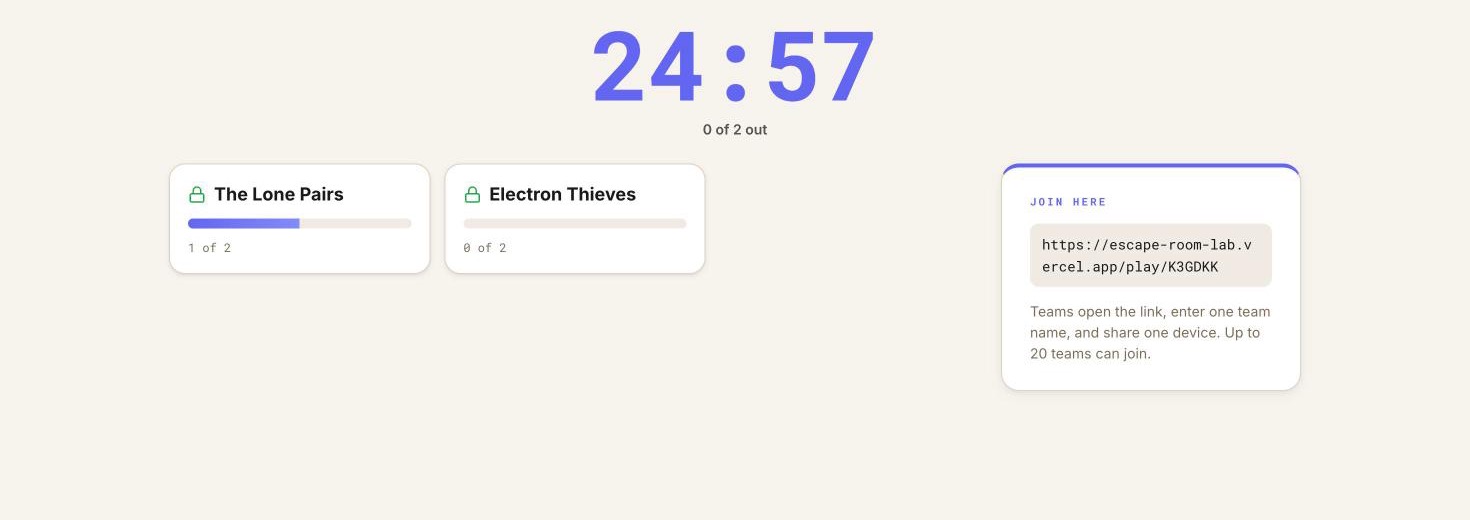 The host board on the projector. Big clock, every team, and the join link.
A few things I built in on purpose. On devices that support full-screen mode, students enter full screen before they can open locks. If they leave it, the clock keeps running and the locks stay closed until they come back. The answer key never travels to the student's device; Firestore rules check each attempt and only then let a student's or team's progress move forward. And the optional physical box code (if you want to end with a real lockbox in the room) is released only to a student or team that has finished.
What I don't know yet
I built this a few weeks ago, so I do not have a semester of evidence to report. What I do not know yet is whether building them this fast changes how I use them. My guess is that when a tool takes ten minutes instead of an hour, it stops being an end-of-unit event and starts showing up in the middle of the week, as a warm-up or a single five-minute lock. I honestly do not know yet. If you build one for your class, I would love to hear how it goes.
Escape Room Lab is at escape-room-lab.vercel.app, and it lives in the Classroom Toolkit on my Projects page with the rest of my teacher tools. It is free and it works with any Google account.
Keep reading
New writing, when there is something worth sharing.
Notes on curiosity, inquiry, science teaching, and building the lesson.
No spam. Unsubscribe anytime. Prefer RSS?
Related reading
Stoichiometry as a Board Game
For years I taught stoichiometry with ICE tables. I still love what they model, but this year I tried something different: a one-page house that is both the solving sheet and the game board.
Read →Explore New Experimental Lessons, Resources, and Artifacts Page!
Dear Readers and Subscribers, I wanted to share some exciting news with you! Over the years, I’ve been working on creating lessons that are a bit outside the box, blending technology, science, and...
Read →5E Lesson Example: Cellular Respiration w/Crosscutting NGSS Integration.
CYCLES OF LEARNING
Read →